Photo-to-Painting Readiness Checker
Test if your landscape photo is ready for AI painting conversion. Based on the article's best practices for successful results.
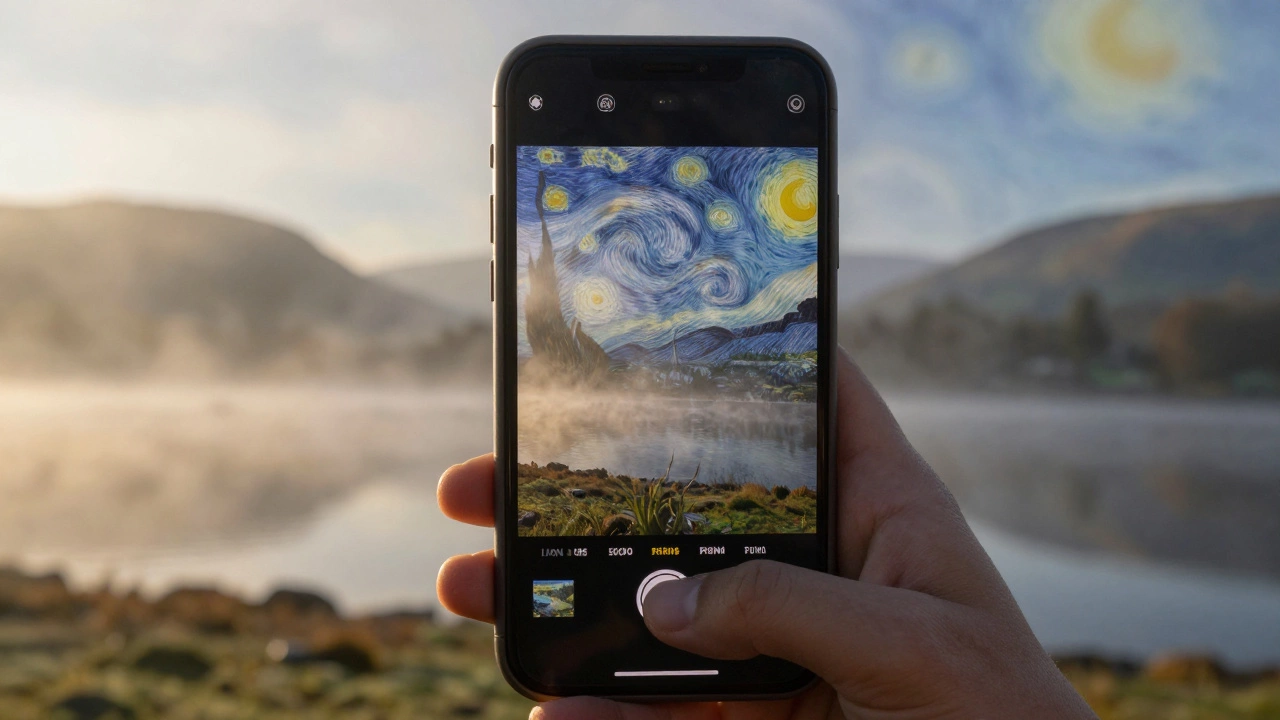
Ever taken a photo of a misty morning in the Lake District or a golden field at sunset, and wished it looked like a Monet or a Turner? You’re not alone. Today, apps can turn your ordinary snapshots into stunning landscape paintings-with brushstrokes, texture, and mood that feel hand-painted. No art degree needed. Just your phone, a photo, and a few taps.
How these apps actually work
These aren’t just filters that change the color tone. They use deep learning models trained on thousands of classical and impressionist paintings. The AI learns how artists like Van Gogh or Constable layered paint, applied strokes, and handled light. When you upload a photo, the app analyzes the shapes, edges, and colors, then rebuilds the scene using those learned painting styles.
It’s not magic-it’s math. The algorithm identifies sky, trees, water, and terrain, then maps them to brushstroke patterns from its training data. A cloudy sky might get soft, blended strokes. A forest becomes thick, textured dabs. The result? A photo that doesn’t just look painted-it looks like it was made by a human artist working in the 1800s.
Top apps that turn photos into landscape paintings
Not all apps are built the same. Some focus on realism. Others lean into wild, expressive styles. Here are the ones that actually deliver.
- Prisma: One of the earliest to go viral. It offers over 30 painting styles, including Van Gogh’s swirling skies and Monet’s water lilies. The landscape presets are especially strong-your mountain photo becomes a romantic 19th-century oil painting. Free version has watermarks; Pro removes them and unlocks higher resolution.
- DeepArt: Lets you pick any painting as a style reference. Upload your photo, then choose a specific artwork (like Constable’s The Hay Wain) to mimic. It’s slower than Prisma but gives you real control. Best for users who want a specific artist’s look.
- PaintsChainer: Originally built for anime-style art, but its landscape mode is surprisingly good. It separates foreground and background, letting you adjust brush intensity on each. Great if you want to tweak how much the paint "overlays" the original photo.
- Adobe Express (formerly Adobe Spark): Not as flashy as others, but its "Oil Painting" and "Watercolor" filters are clean, professional, and optimized for print. If you’re planning to frame the result, this is the most reliable choice.
- Artisto: Focuses on video, but its photo mode works well for landscapes. Offers bold, high-contrast styles that turn simple scenes into dramatic pieces. Ideal for moody, stormy, or twilight shots.
These apps all work on iOS and Android. Most take under 30 seconds to process a photo. Results vary depending on lighting and composition in your original image. Photos with strong contrast, clear horizons, and natural textures (like trees, water, clouds) convert best.
What makes a photo work well for painting conversion
Not every photo turns into a great painting. Here’s what to look for before you tap "apply":
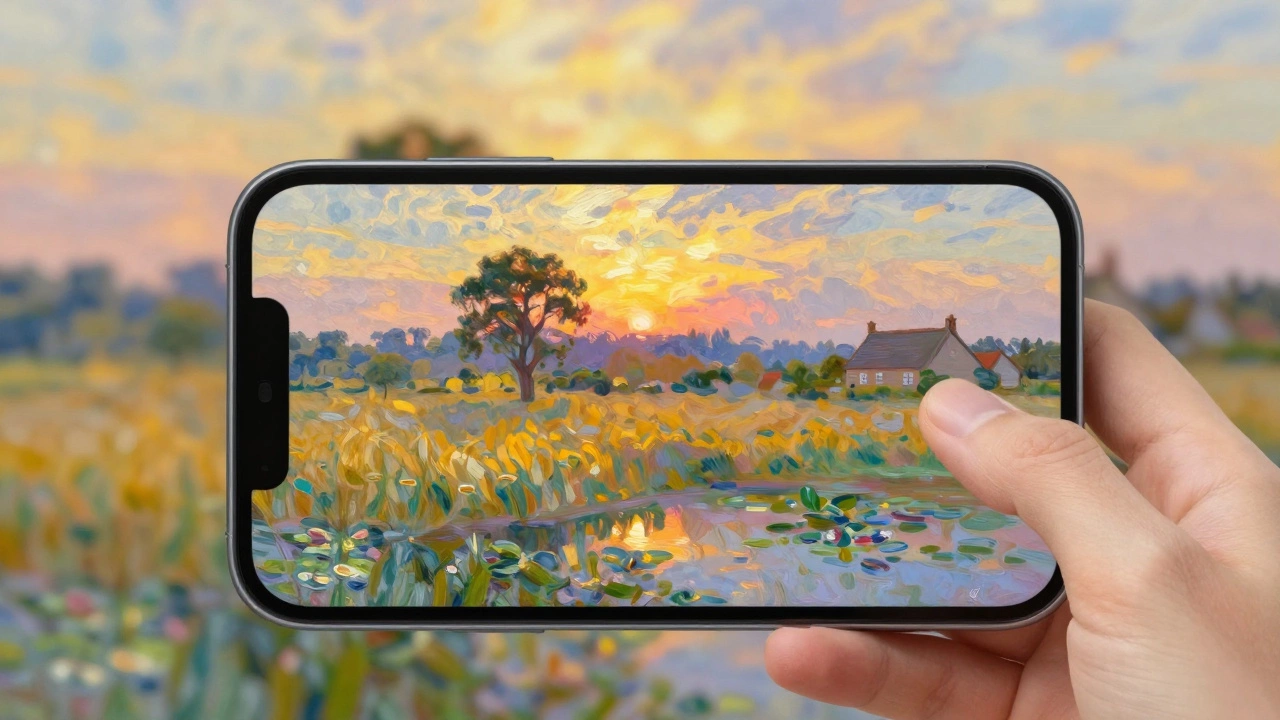
- Good lighting: Golden hour shots (sunrise or sunset) have natural gradients that AI handles beautifully. Flat, midday light often looks muddy after conversion.
- Clear subject: A single tree, a lone boat, a winding path-these give the AI something to anchor the brushwork around.
- Minimal clutter: Busy scenes with too many objects (like a crowded street or a cluttered backyard) confuse the algorithm. Simpler compositions translate better.
- High resolution: Use photos taken with your phone’s main camera, not zoomed or cropped. 1080p or higher works best. Low-res images become pixelated or blurry when the AI tries to reconstruct them.
Try this: Take a photo of a field with a single tree in the distance, during late afternoon. Upload it to Prisma with the "Van Gogh" style. You’ll get something that looks like it came from a museum wall.
Can you use these for professional work?
Yes-but with limits. Artists and designers use these apps for concept sketches, social media visuals, or mood boards. Some galleries have displayed AI-painted photos as part of digital art exhibitions. But if you’re selling prints or entering competitions, check the rules.
Most competitions still require original, human-made art. AI-generated pieces are often listed separately under "digital art" or "AI-assisted" categories. If you’re using the output commercially, make sure the app’s terms allow it. Prisma and Adobe Express do, but some free apps claim ownership of your converted images.
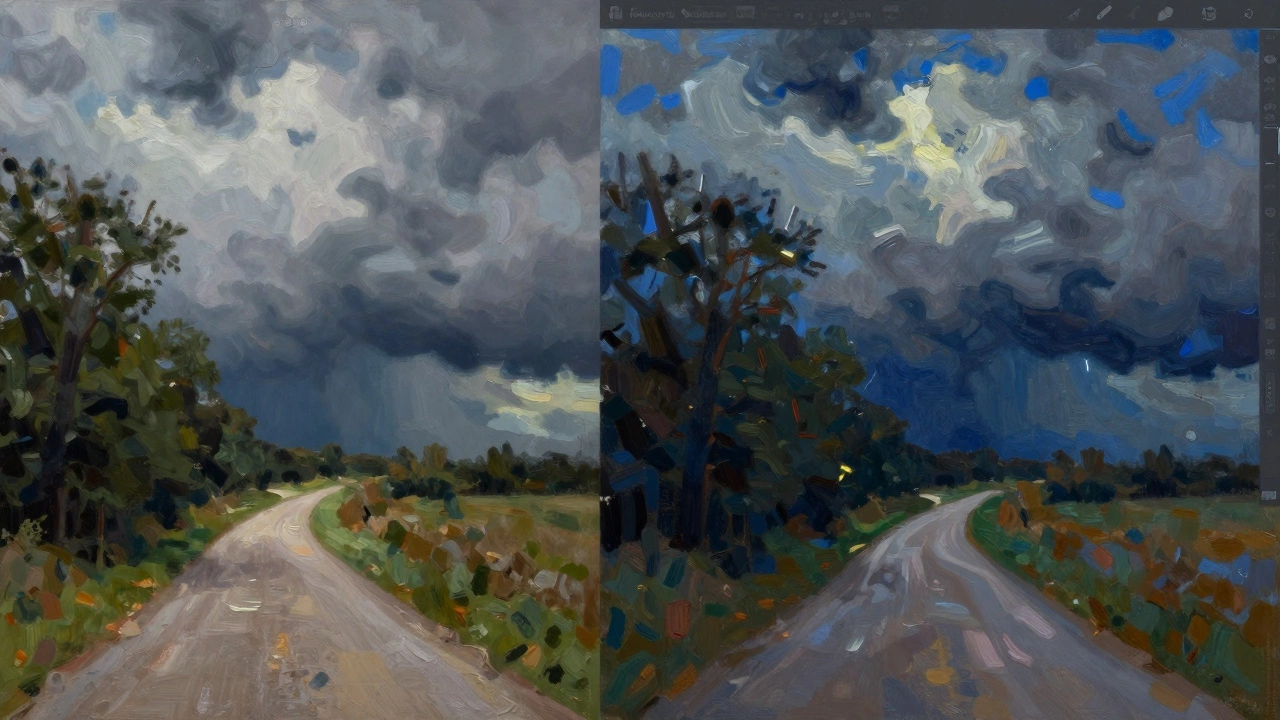
Pro tip: Use the app to generate a base, then tweak it in Photoshop or Procreate. Add your own brushwork, adjust colors, or paint over areas to make it feel more personal. That hybrid approach is what many digital artists use to stand out.
What you shouldn’t expect
These apps won’t turn your blurry vacation snap into a masterpiece. They can’t fix bad composition or poor focus. They also can’t replicate every painting style perfectly. If you want a Dali-style surreal landscape, you’re better off painting it yourself.
Also, don’t expect perfect realism. These tools are impressionistic by design. They emphasize emotion over accuracy. A river might become a ribbon of blue swirls. A mountain might lose its exact shape and become a soft, painted ridge. That’s the point. It’s not about copying reality-it’s about reimagining it.
How to choose the right app for you
Ask yourself:
- Do you want classic styles (Van Gogh, Monet)? → Go with Prisma or DeepArt.
- Do you want control over the result? → Try PaintsChainer or Adobe Express.
- Do you want bold, dramatic effects? → Artisto works best.
- Do you plan to print or sell the image? → Adobe Express is safest for commercial use.
If you’re just experimenting, start with Prisma’s free version. It’s the most forgiving and gives you the widest range of results. Once you find a style you like, you can upgrade or try another app for finer control.
Why this matters beyond just pretty pictures
These apps are changing how people connect with art. You don’t need to visit the National Gallery to feel what it’s like to live inside a Turner painting. You can hold your own version of it in your hand.
For many, it’s a gateway. Someone who never picked up a brush starts experimenting with color and texture through these apps-and then buys a set of watercolors. Or they begin studying art history to understand the styles they’re using. It’s not replacing art. It’s making it more accessible.
And that’s the real value. These tools don’t make you an artist. But they let you see the world like one.
Can I turn any photo into a landscape painting?
You can try, but not all photos work well. Images with strong light, clear subjects, and simple backgrounds convert best. Blurry, dark, or overly busy photos often look muddy or distorted after conversion. Stick to well-composed outdoor shots for the best results.
Do these apps cost money?
Most have free versions with watermarks or lower resolution. Prisma, DeepArt, and Artisto offer subscriptions (around $5-$8/month) to unlock HD exports and remove branding. Adobe Express is free with Adobe account and offers high-res exports without payment, making it the most cost-effective option for serious use.
Are AI-generated paintings considered real art?
That’s debated. Museums and galleries increasingly accept AI-assisted works under "digital art" or "AI-generated" categories. But traditional art circles often distinguish between human-created and machine-assisted pieces. The key is transparency-label your work honestly if you’re sharing or selling it.
Can I use these apps to make prints for sale?
Yes, but check the app’s terms. Prisma and Adobe Express allow commercial use of exported images. Some free apps claim rights to your creations. Always read the fine print before selling prints. For safety, use Adobe Express or upgrade to paid versions that clearly state commercial rights.
Why does my painting look different on my phone vs. printed?
Screens glow and enhance colors. Prints rely on ink and paper quality. What looks vibrant on your phone might look flat or dull when printed. Always export in the highest resolution available (at least 300 DPI), and consider printing on matte or fine art paper to preserve brushstroke texture. Test with one print before ordering a batch.
Next steps: Try this today
Grab your phone. Open your gallery. Pick a photo of a landscape you love-maybe a walk you took last weekend. Open Prisma, select the "Van Gogh" style, and let it run. Wait 20 seconds. Look at the result. Does it feel alive? Does it make you pause? That’s the moment technology meets imagination.
Now try another style. Try DeepArt with a Constable reference. Compare the two. Notice how the same scene changes with different brushwork. That’s not just an app-it’s a new way to see the world.
